Any game
It detects any game you open, on the list or not.


I read your machine, show you what is holding your game back, and we fix it one setting at a time.
Download for WindowsSit down. Let me see that PC.
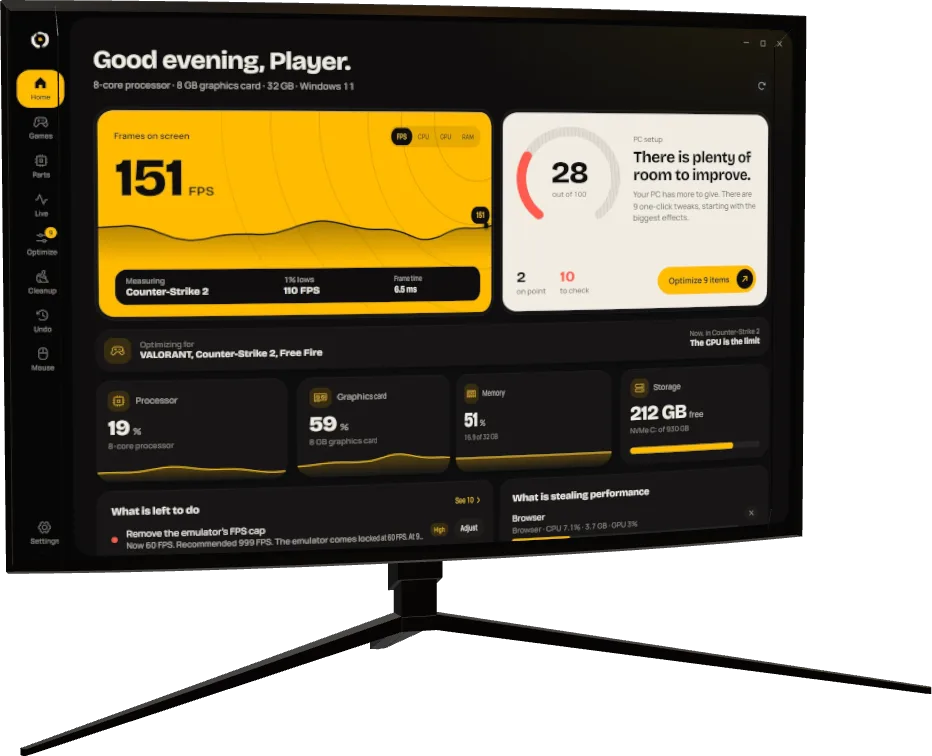
On screen: the app with sample data
03Part by part
Each part tells me something. Here is what I look at and what I do with it.
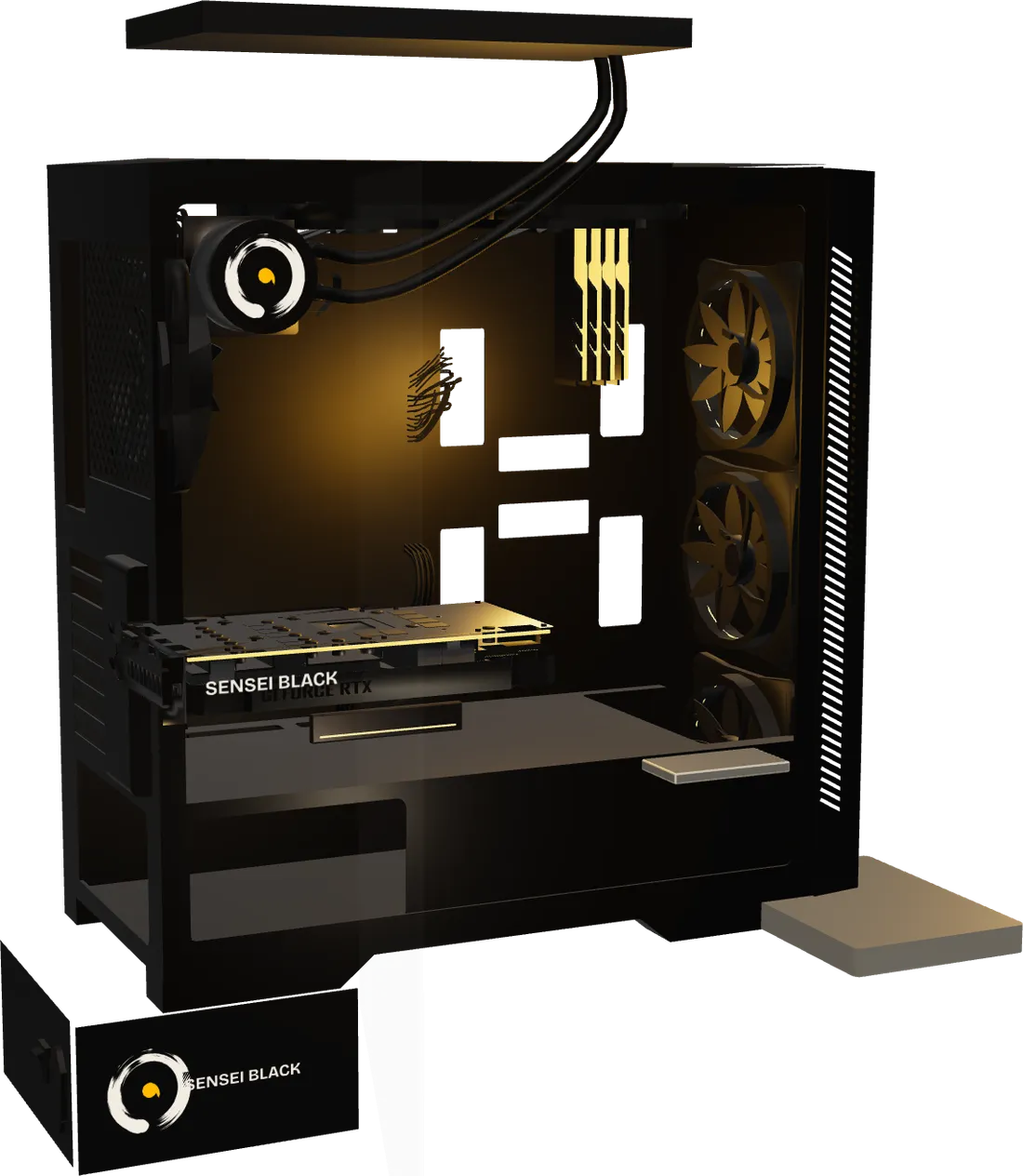
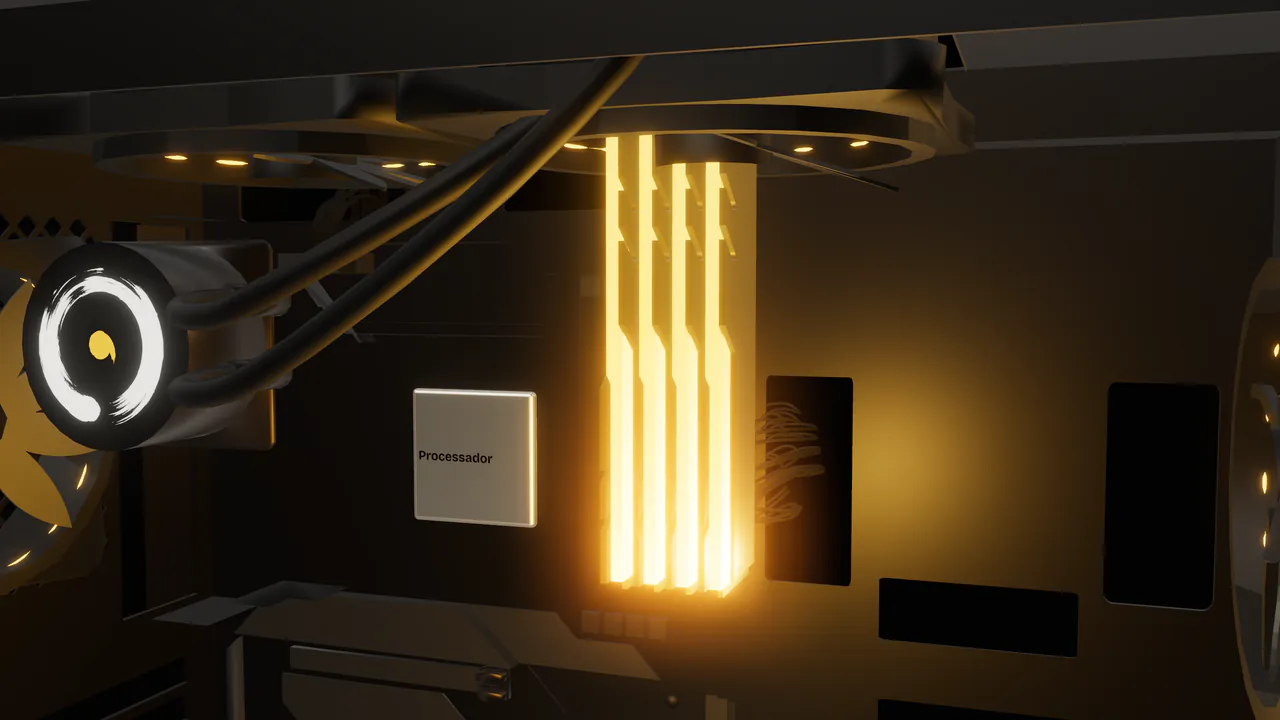
04Going in
05Your game
Pick yours. This is where I look first.
What it asks from your PC
Valorant, League of Legends, Call of Duty and Battlefield 6 require Secure Boot and TPM 2.0. The app tells you if they are off and never turns them off.
A guide for where to look first, not a measurement.
06How it works
No rush. Read the list first.
Your Sensei Black account. It opens in your browser and comes right back.
What you play, what bothers you, what else the PC does. That sets the order.
Every setting shows how it is now, how it will be, and why. You choose.
One click. A restore point comes first.
Play. Then see frame rate and frame time, before and after.
It detects any game you open, on the list or not.
Play time and average FPS, per game.
07Measured
The app counts frames while you play. If a change helped, you see it. If it did not, you see that too, and you undo it.
Steady beats high. Look at the dips.
FPS over one match, example
08Safety
Windows, driver and in-game options you could change by hand.
No game file is opened, edited or replaced.
The app saves each value before changing it. One click puts it back.
Before the first change, Windows saves a restore point.
Settings only. Never touches game files. Account actions are decided only by the game publisher.
Something feels off? Undo it. That is what the button is for.
09Questions
Want to do it by hand? The guide covers every step, what to skip and how to measure.
Read the PC optimization guidePC optimization means adjusting Windows, your graphics driver and your game settings so the machine delivers what its parts can already do, with no new hardware. The goal is steady FPS, fewer stutters and less delay.
It depends on what limits your game. A monitor stuck at 60 Hz, an old driver, memory below its rated speed or a game on the wrong card make a clear difference. On a PC that is already well set up, the gain is small. That is why the app measures FPS before and after, on your PC.
It is a Windows optimizer for gamers. It reads your processor, graphics card, memory, storage and temperatures, lists what is holding your game back and explains each setting. You choose what changes, and the app measures the result.
The app changes only Windows, driver and in-game settings you could change by hand. Before the first change, Windows saves a restore point, and the app saves each old value. One click puts it back.
No game file is opened, edited or replaced, and the app never turns off Secure Boot or TPM. Account actions are decided only by the game publisher, so nobody can promise anything about them.
It runs on 64-bit Windows 10 and 11. It has guidance for Valorant, Counter-Strike 2, Fortnite, PUBG: BATTLEGROUNDS, Call of Duty, Battlefield 6, Apex Legends and League of Legends, and it detects any other game you open.
Yes. Free Fire and PUBG Mobile / BGMI on an emulator are part of the app, and it knows BlueStacks 5 and MSI App Player. On an emulator, the biggest difference usually sits in its own settings and in the mouse.
It is one file with no installer. You sign in with your Sensei Black account through the browser. The interface needs the WebView2 Runtime, which comes with Windows 11 and updated Windows 10. If it is missing, the app tells you.
10The family
Sensei Black started on the phone. Same account, same coach, same way of working, now on your Windows PC.
See you in the next match.